Create / Edit Promotion
The Create / Edit Promotion section allows you to add and edit new promotion setting to the system.
Promotion Type - Default
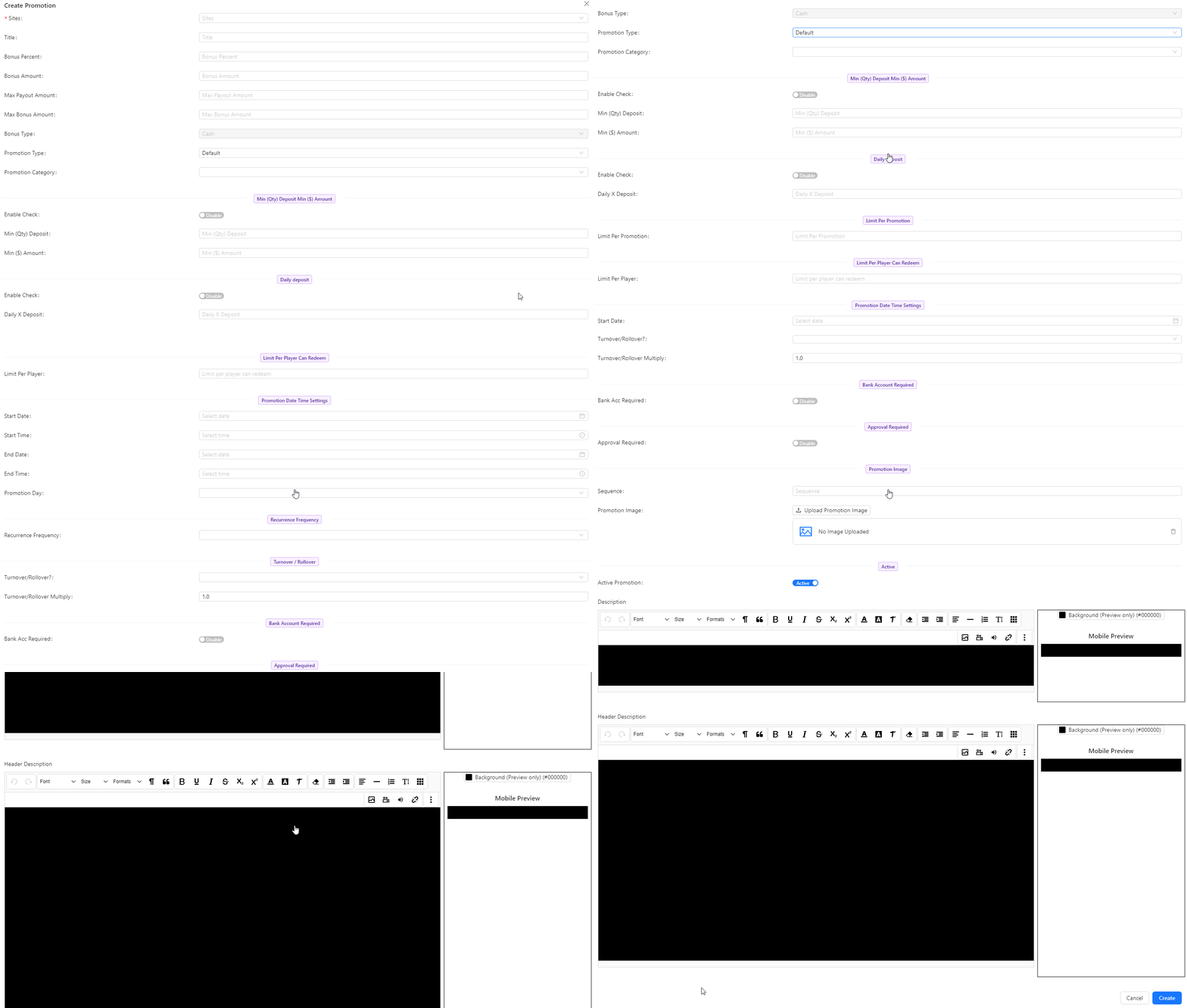
Create Promotion
- Sites: The locations or platforms where the promotion will be active.
- Title: The name or title of the promotion.
- Bonus Percent: The percentage of the bonus awarded for the promotion.
- Bonus Amount: The fixed amount of bonus provided by the promotion.
- Max Payout Amount: The maximum amount that can be paid out from the promotion.
- Max Bonus Amount: The maximum bonus amount that can be awarded through the promotion.
- Bonus Type (default cash): The type of bonus, defaulting to cash. This field is disabled and cannot be changed.
- Promotion Type: The type of promotion:
- Default (Default)
- Click To Claim
- Redeem
- Classic Promotion Claim
- Promotion Category: The category under which the promotion falls.
- Min (Qty) Deposit Min ($) Amount:
- Enable Check: A switch to enable or disable this field.
- Min (Qty) Deposit: Minimum quantity of deposits required (input only if enable check is enabled).
- Min ($) Amount: Minimum dollar amount of deposit required (input only if enable check is enabled).
- Daily Deposit:
- Enable Check: A switch to enable or disable this field.
- Daily X Deposit: The number of daily deposits required (input only if enable check is enabled).
- Limit Per Promotion: The maximum number of times the promotion can be used.
- Limit Per Player: The maximum number of times a single player can use the promotion.
- Promotion Date Time Settings:
- Start Date: The date when the promotion starts.
- Start Time: The time when the promotion starts.
- End Date: The date when the promotion ends.
- End Time: The time when the promotion ends.
- Promotion Day: Selectable days of the week when the promotion is active (Monday to Sunday).
- Recurrence Frequency: How often the promotion recurs:
- Daily
- Weekly
- Monthly
- Turnover / Rollover:
- Turnover/Rollover?: Select between turnover or rollover.
- Turnover/Rollover Multiply: The multiplier for turnover or rollover.
- Bank Account Required: A switch to enable or disable the requirement for a bank account.
- Approval Required: A switch to enable or disable the requirement for approval.
- Promotion Image: An image representing the promotion.
- Sequence: The order in which the promotion appears or is listed.
- Active: A switch to enable or disable the promotion.
- Description: A detailed description of the promotion.
- Header Description: A brief description or summary to be displayed as the header.
Promotion Type - Click To Claim, Redeem, Classic Promotion Claim
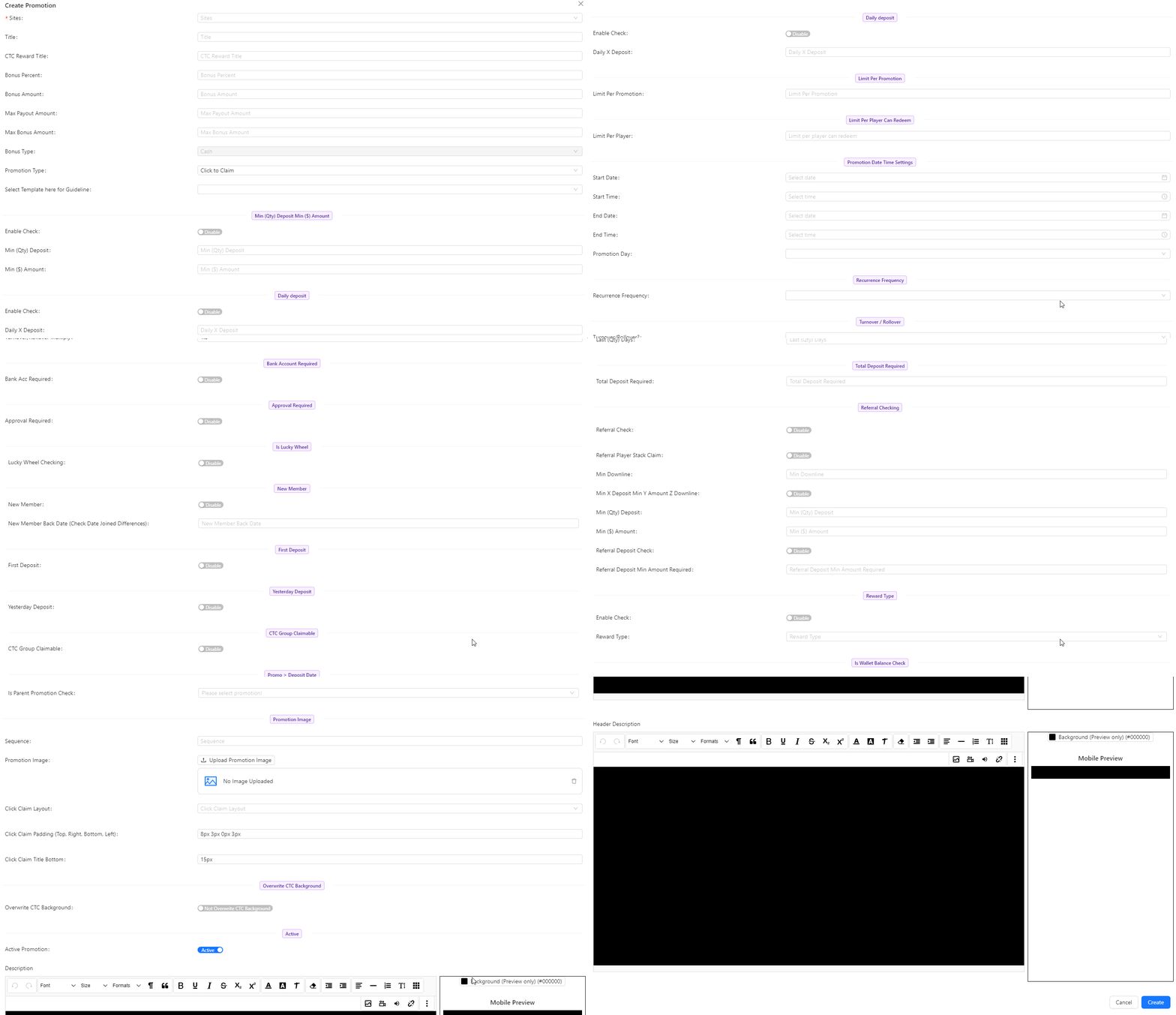
Additional Field if promotion type = Click To Claim, Redeem, Classic Promotion Claim
- CTC Reward Title: The title of the CTC (Click-To-Claim) reward promotion.
- Select Template Here for Guideline: Choose a guideline template to follow for setting up the promotion.
- Is Lucky Wheel: Enable or disable the Lucky Wheel feature for the promotion.
- Lucky Wheel Checking: Configure the Lucky Wheel checking options if the Lucky Wheel is enabled.
- New Member:
- New Member: Enable or disable promotion for new members.
- New Member Back Date: Check the date when the member joined to apply the promotion.
- First Deposit: Enable or disable promotion based on the first deposit.
- Yesterday Deposit: Enable or disable promotion based on deposits made yesterday.
- CTC Group Claimable: Enable or disable the ability for CTC group claims.
- Promo > Deposit Date (For Unlimited Claim Use): Enable or disable the promotion's applicability based on deposit date for unlimited claims.
- ($) Amount in (Qty) days:
- Enable Check: Enable or disable this feature.
- Min ($) Amount: Minimum amount required if the enable check is enabled.
- Last (Qty) Days: Number of days in which the amount should be deposited if the enable check is enabled.
- Total Deposit Required: The total amount required to qualify for the promotion.
- Referral Checking:
- Referral Check: Enable or disable checking for referrals.
- Referral Player Stack Claim: Enable or disable claims based on referral player stacks.
- Min Downline: Minimum number of downline members required.
- Min X Deposit Min Y Amount Z Downline: Criteria for referral deposits including minimum deposits, amounts, and downline requirements.
- Min (Qty) Deposit: Minimum quantity of deposits required.
- Min ($) Amount: Minimum dollar amount of deposits required.
- Referral Deposit Check: Enable or disable referral deposit checking.
- Referral Deposit Min Amount Required: Minimum deposit amount required for referrals.
- Reward Type:
- Enable Check: Enable or disable this feature.
- Reward Type: Type of reward offered:
- Rebate by Deposit
- Rebate by Turnover
- Referral by Deposit
- Referral by Turnover
- Is Wallet Balance Check:
- Enable Check: Enable or disable checking of wallet balance.
- Max Wallet Balance Amount: Maximum wallet balance amount allowed.
- Is Parent Promotion Check: Select a parent promotion to apply to this promotion.
- Sequence: The order in which the promotion appears or is listed.
- Promotion Image: An image representing the promotion.
- Click Claim Layout: Choose the layout for the click-to-claim feature from available options.
- Click Claim Padding: Set the padding (Top, Right, Bottom, Left) for the click-to-claim layout.
- Click Claim Title Bottom (px): Set the bottom margin for the click-to-claim title in pixels.
- Overwrite CTC Background: Enable or disable overwriting the default CTC background.
- Active: A switch to enable or disable the promotion.
- Active Promotion: Indicates whether the promotion is currently active.
Select Template here for Guideline
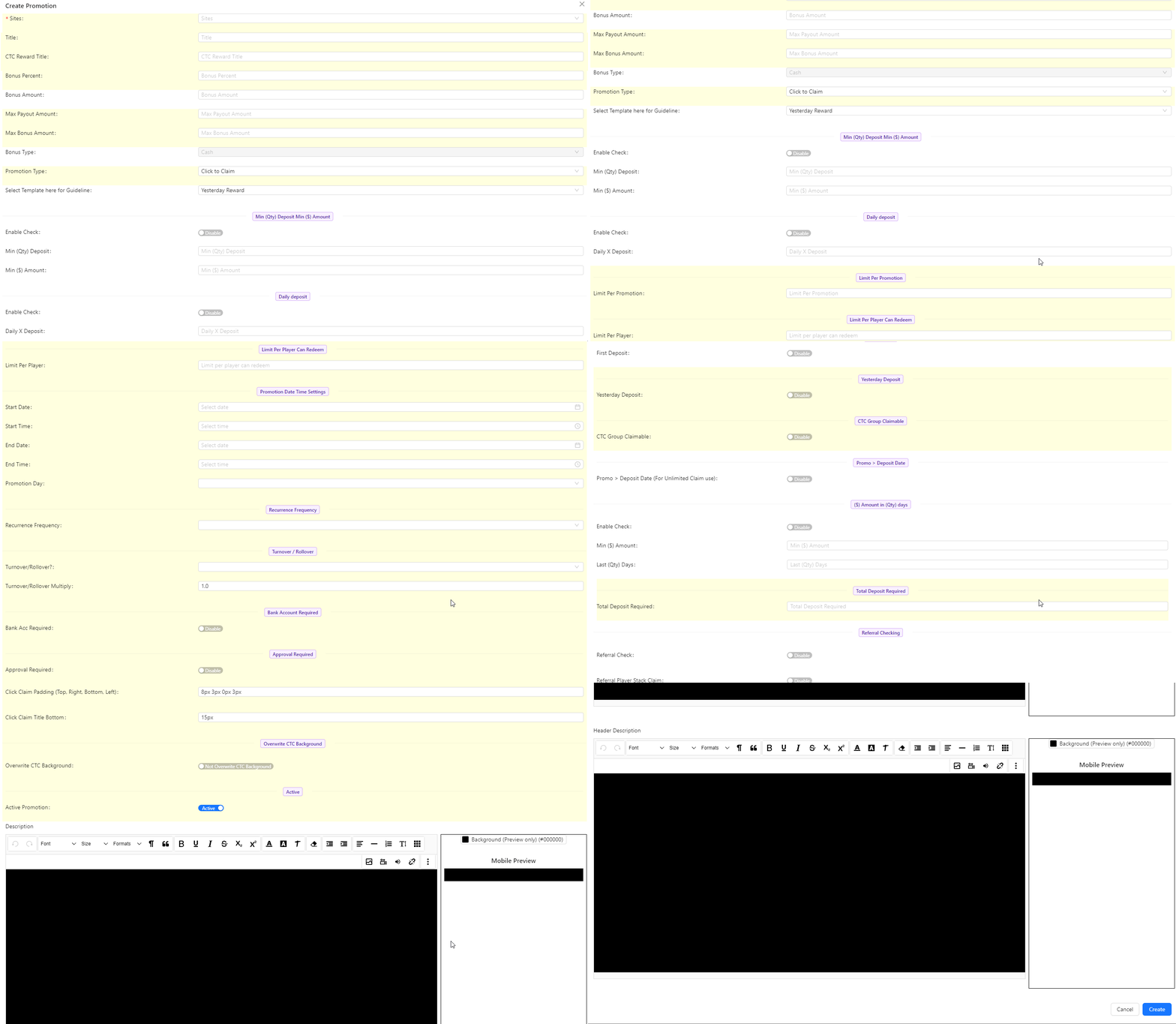
If the promotion type is not Default, a "Select Template Here for Guideline" option will be available to guide users in setting up the promotion.