Create / Edit Mission
The Create / Edit Mission section allows you to add new mission for the player.
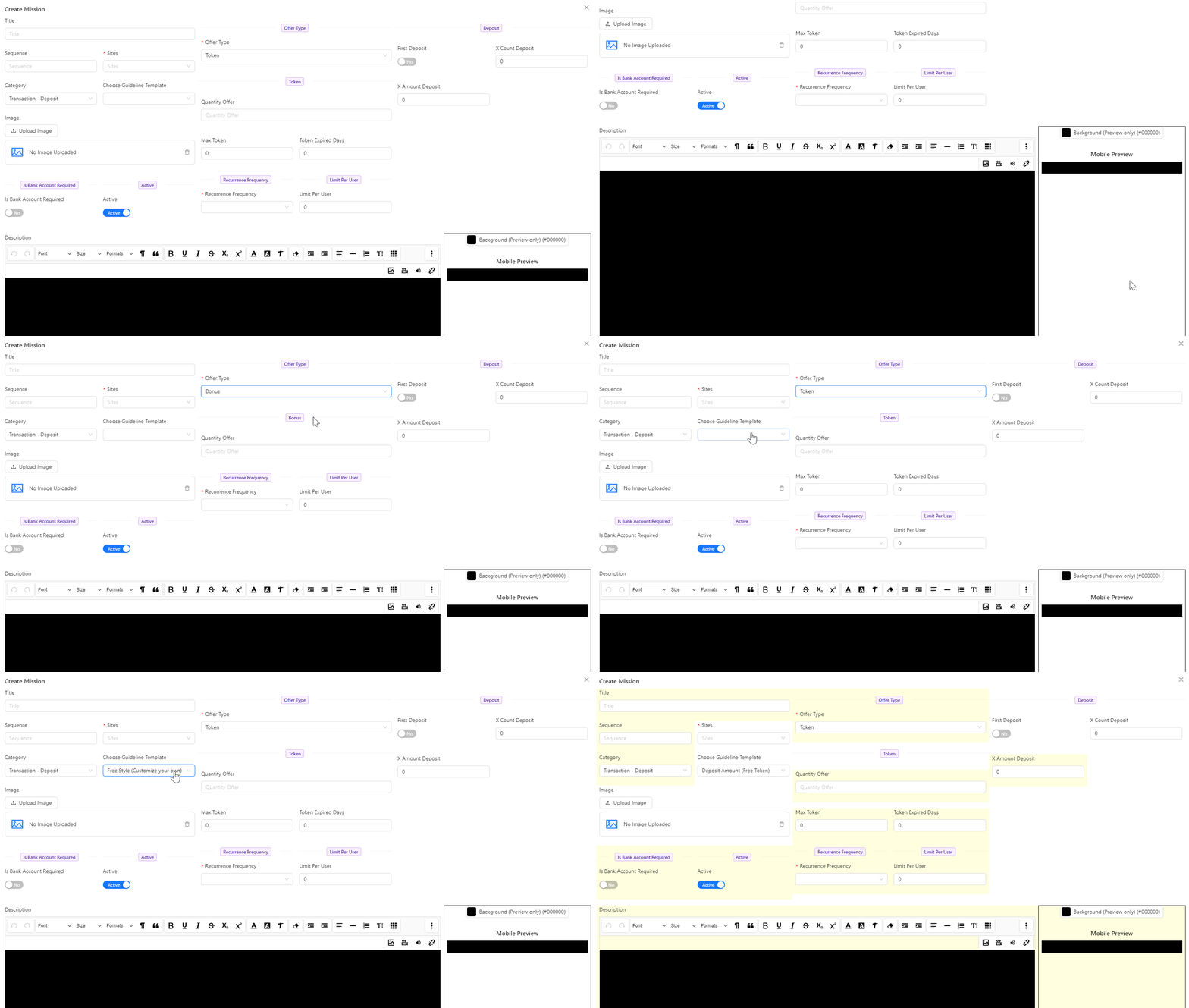
- Title: Enter the title of the mission.
- Sequence: Define the order in which the mission appears.
- Sites: Select the site to which the mission applies.
- Category: Select the category for the mission. Each category requires different input fields. By default, the category is set to Transaction - Deposit. 🔗You may refer to
- Choose Guideline Template: Select a guideline template for the mission.
- Image: Upload or select an image associated with the mission.
- Is Bank Account Required: Specify whether a bank account is required for the mission.
- Active: Set whether the mission is active or inactive.
- Offer Type: Select the type of offer, either token or bonus. By default is Token.
- Token: Specify the token associated with the mission.
- Quantity Offer: Define the quantity of the token or bonus offered.
- Max Token: Set the maximum number of tokens that can be earned.
- Token Expired Days: Define the number of days before the token expires.
- Recurrence Frequency: Choose how often the mission can be completed (daily, weekly, or monthly).
- Limit Per User: Set the maximum number of times a user can complete the mission.
- Description: Provide a detailed description of the mission.
Category - Transaction Deposit
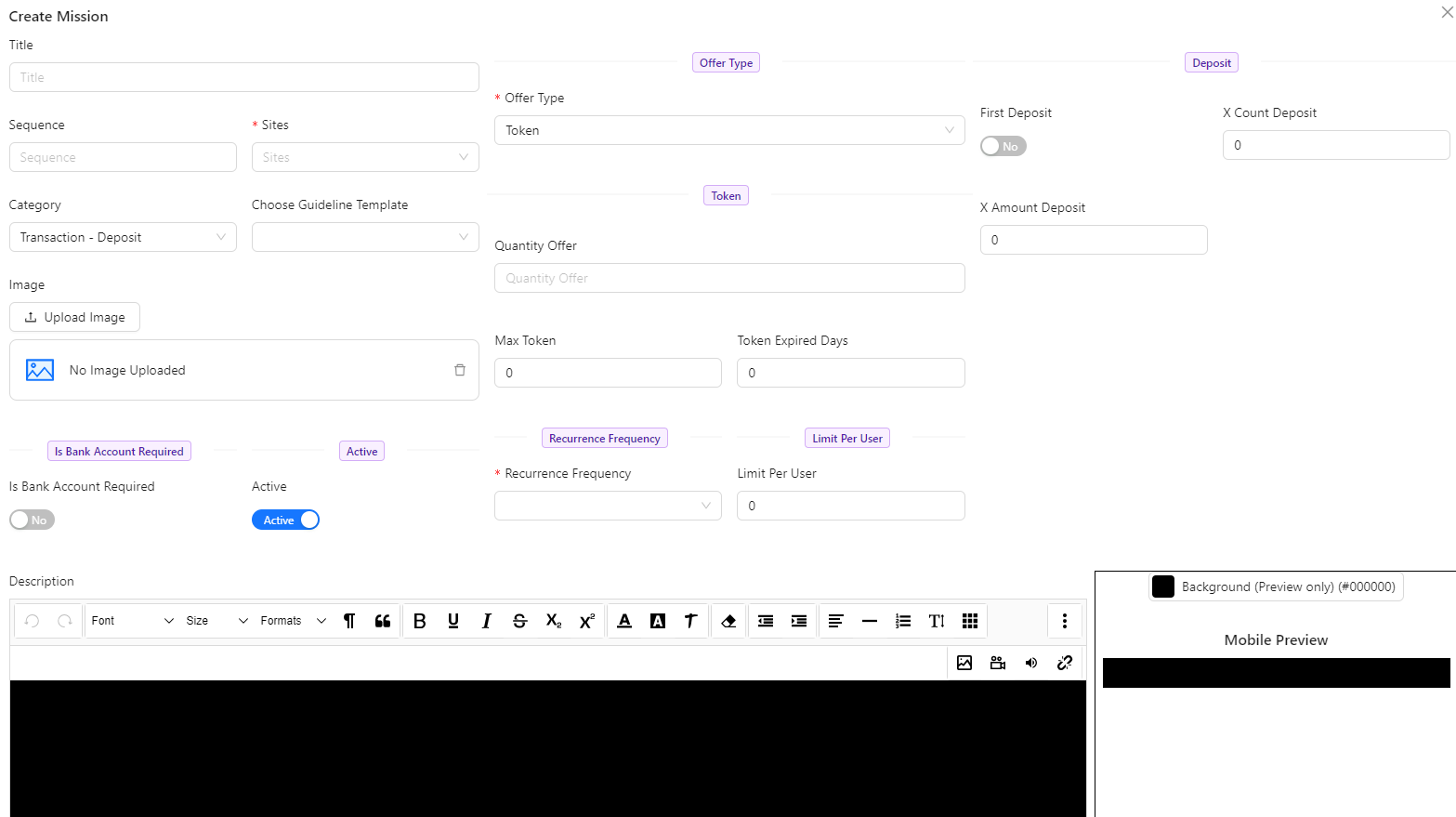
- First Deposit: Set up missions based on the user's first deposit.
- X Count Deposit: Configure missions based on a specific number of deposits.
- X Amount Deposit: Define missions that are triggered by a specific total deposit amount.
Category - Transaction Withdrawal
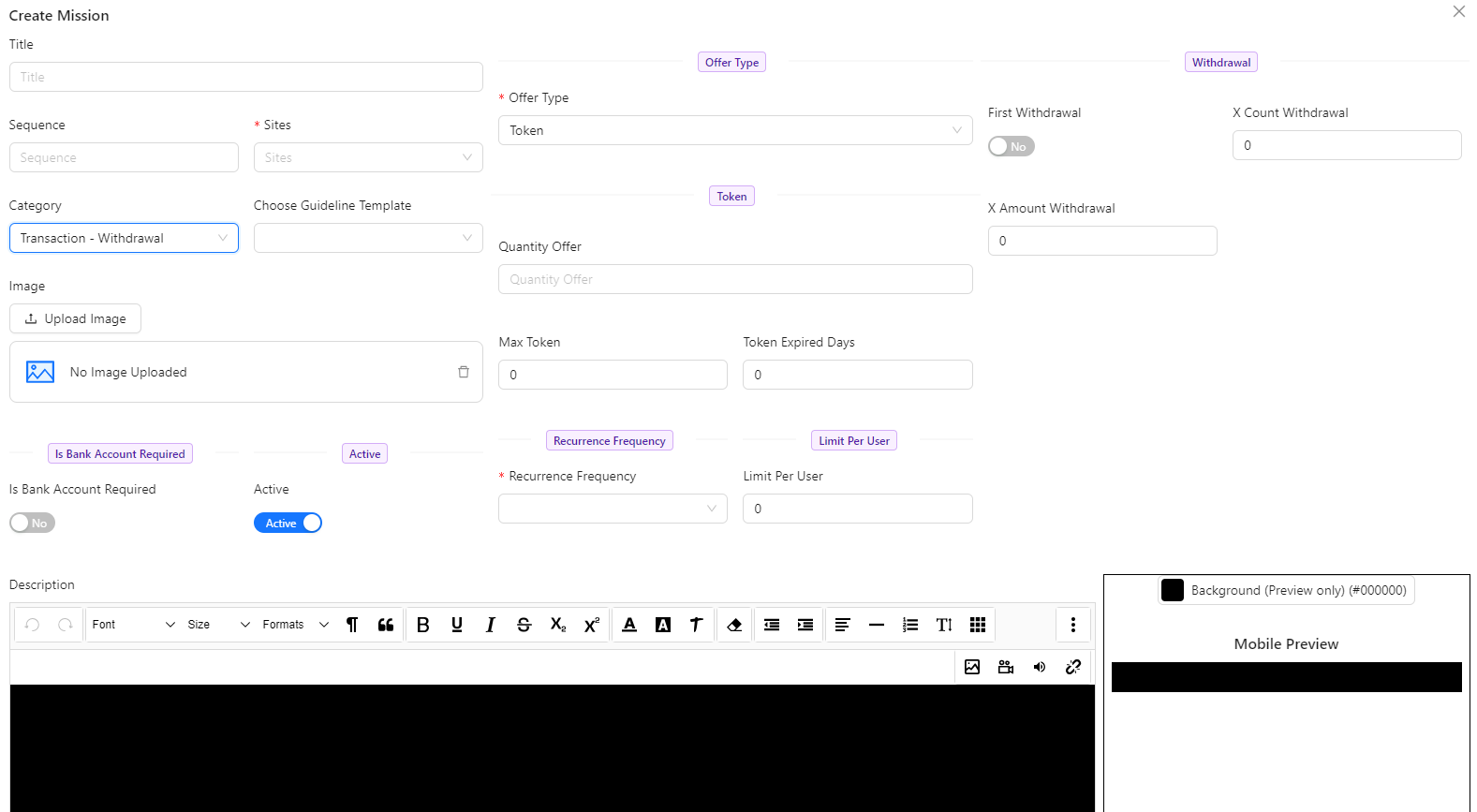
- First Withdrawal: Configure the mission for the player’s first withdrawal.
- X Count Withdrawal: Define the number of withdrawals required to qualify for the mission.
- X Amount Withdrawal: Specify the total withdrawal amount needed to complete the mission.
Category - Gamelog - Turnover
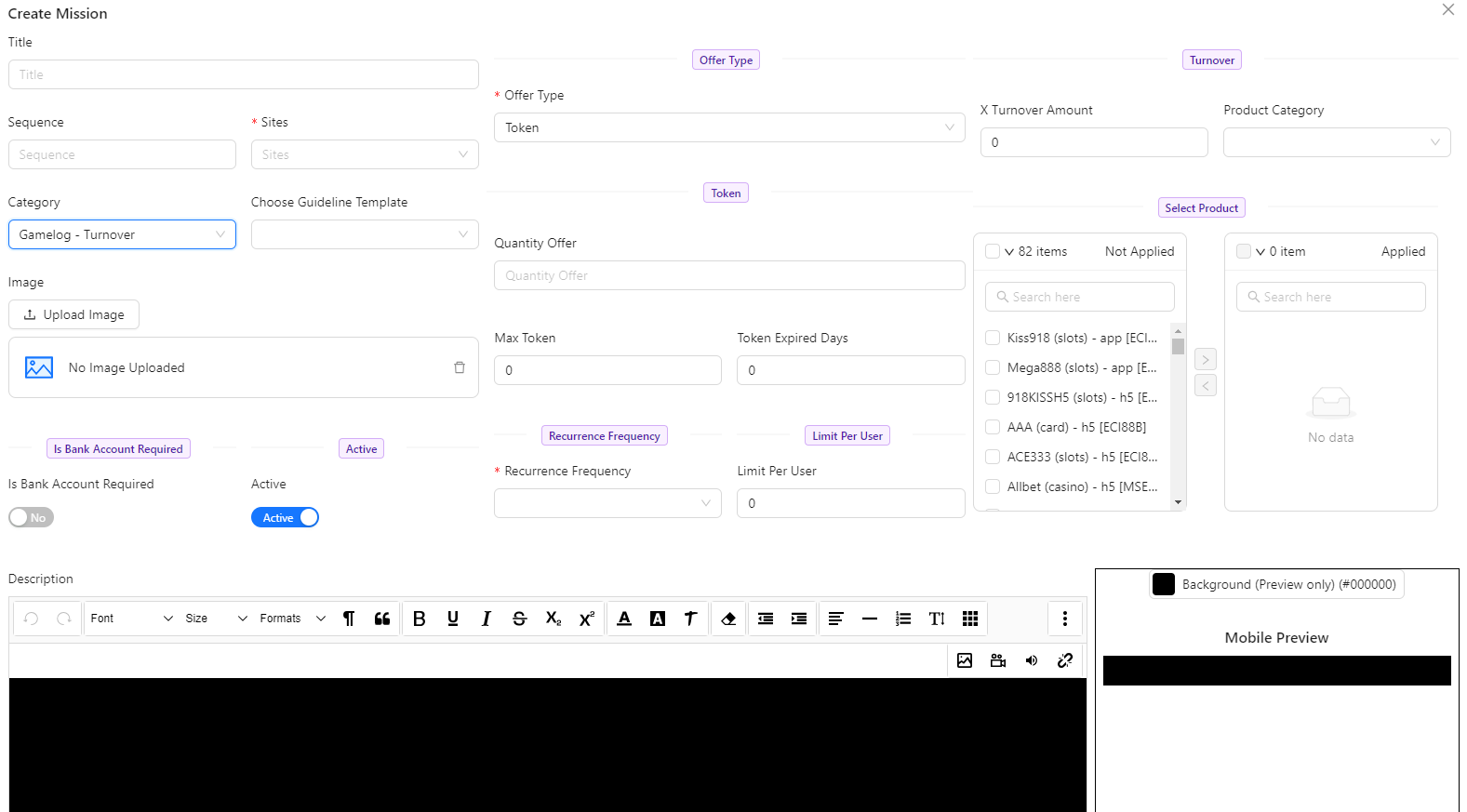
- X Turnover Amount: Set the turnover amount required to complete the mission.
- Product Category: Choose the category of the product related to the mission.
- Select Product: Specify the product for the mission.