View Task Assignment
The View Task Assignment section allows you to assign tasks to staff members via Excel upload or reports. This feature is designed to streamline the process of task distribution and management, making it easier to oversee and track staff assignments efficiently.
Toolbar

-
Date Picker: Allows users to filter task assignment listing by selecting a specific date range.
-
Assign To: Allows users to filter task assignment listing by Assign To (user).
-
Progress: Allows users to filter task assignment listing by task assignment's progress.
-
Status: Allows users to filter task assignment listing by task assignment's status, by default will filter by New.
-
Batch Delete Task: This allows you to batch delete task assignment. 🔗
-
Batch Assign Report: This allows you to batch assign task report. 🔗
Task Assignment Listing
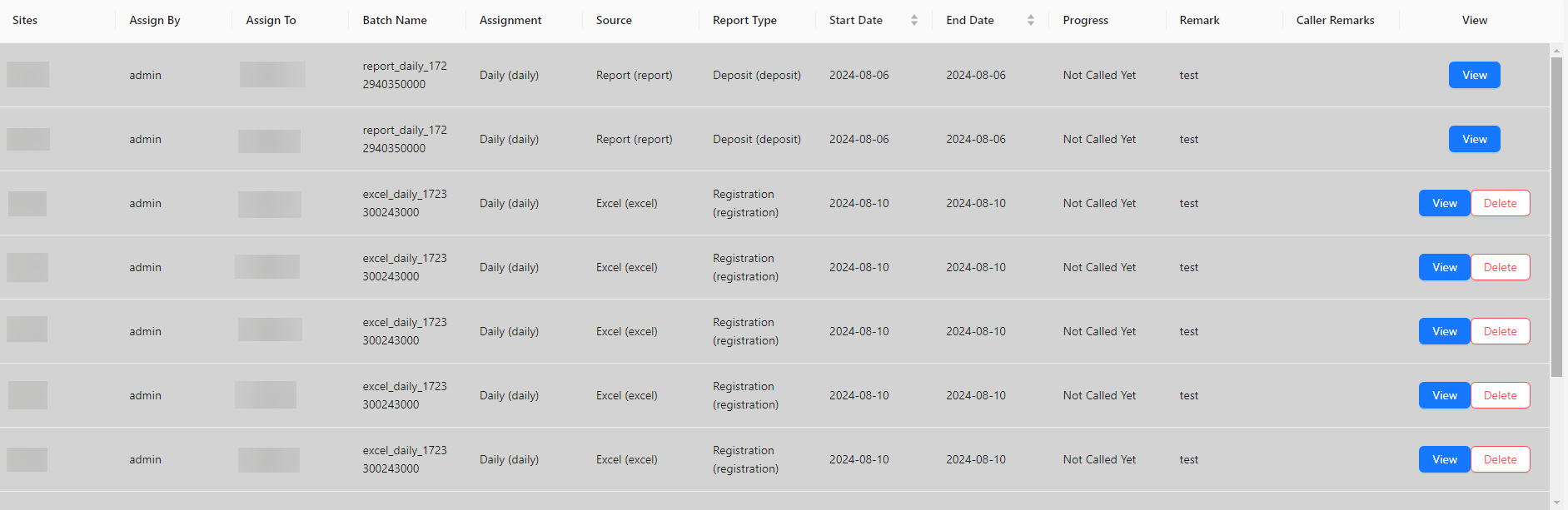
- Sites: The specific site associated with the task.
- Assign By: The user who assigned the task.
- Assign To: The user who the task is assigned to.
- Batch Name: The name of the batch for the task assignment.
- Assignment: The task or set of tasks assigned.
- Source: Indicates the origin of the task, either from a Report or Excel.
- Report Type: The type of report associated with the task.
- Start Date: The starting date of the task assignment.
- End Date: The ending date of the task assignment.
- Progress: The current progress of the task.
- Remark: Any additional notes or remarks related to the task.
- Caller Remarks: Specific comments from the caller related to the task.
- View: Includes options to view the task details or delete the task.